17 Ways to Get More Views, Engagement and Shares on Your Facebook Videos
With Facebook constantly evolving and introducing new features, your video marketing strategy has to evolve too.

This story originally appeared on
This post was originally published in 2015 and has been updated with the latest Facebook video tips and information.
Over 8 billion videos or 100 million hours of videos are watched on Facebook every day.
These stats early last year so imagine how much larger the numbers are today as Facebook continued to grow and double down on videos.
Related: How to Use Instagram’s Search and Explore Tool to Boost Your Instagram Marketing
Now seems to be the perfect time to take a closer look at Facebook video and how to use videos to engage more fans on the platform.
With , we’d love to help you get ahead of this rising trend. In this post, you’ll learn 17 actionable tips to increase the views, engagement and shares on your Facebook videos.

17 Top Facebook video tips for more views, shares and engagement
With Facebook constantly evolving and introducing new features, your has to evolve, too. Check out the below video and latest tips to help you create videos that captivate your audience:
Let’s take a look at each tip in detail.
1. Create square videos
Earlier this year, we spent $1,500 to find out what makes videos successful on social media.
We square videos outperformed landscape videos in terms of average engagement, views and reach, especially on mobile. And we to see these results.

Here’re a couple possible reasons:
- use Facebook on their mobile every day.
- has increased 233 percent since 2013, and more than half of video views take place on mobile.
- Square videos take up in the News Feed on mobile than on desktop.

With more and more people viewing videos on mobile, it’ll be great to experiment with square videos to see if they improve your video performance. You might even want to consider creating vertical videos since Facebook is now .
We have been using to create simple, short videos and and for more professionally produced videos.
2. Catch people’s attention within the first three seconds
Facebook videos auto-play in order to captivate users’ attention and convince them to watch more.
As such, your Facebook video should have a powerful first few seconds that captivate your audience even without sound.
has become Here’s how they’ve done it:
- Great thumbnails: BuzzFeed uploads custom thumbnails that do a great job at capturing people’s attention while they scroll through their feed.
- Tease the video with a short post update: Sometimes it’s the title of the video itself (if that is compelling enough). Other times they tease what the video is about.
- Immediate start: BuzzFeed doesn’t waste time in capturing people’s attention. In general, the first frame is already geared towards piquing someone’s interest.
Here’s a recent example which has garnered more than 8.7 million views at the time of writing:
How to uploading a custom thumbnail:
When you upload a video, you can select a thumbnail or add a custom thumbnail for your video.

If you didn’t upload a custom thumbnail for your existing Facebook videos, you can select “Edit Post” from the menu and a similar pop-up will appear.

3. Add captions to your videos
.
Even though Facebook now auto-plays videos on the mobile News Feed with sound, it’s unclear how many people watch videos with the sound on. Facebook users can disable the auto-play-with-sound feature, and videos will auto-play without sound if the mobile phone is on silent mode.
My hunch is that most Facebook users still watch videos without sound.
If a viewer can’t understand your video without the sound, you would likely lose that viewer and the opportunity to convey your message to him or her.
To prevent that, you can add captions to your videos through Facebook. When you are uploading your video onto Facebook, there’s an option to upload a SRT file of your captions. You can also add captions to existing Facebook videos .

(It seems that Facebook has been so you might not have to do this manually soon.)
Alternatively, you can add text overlay to your videos using a video editing tool like . Colorful and to-the-point text overlays can make the video more appealing and engaging.
Here’s a great example by :

4. Suggest viewers tap for sound
Another neat way to work around the silent auto-played Facebook videos is to suggest viewers tap for sound with a pop-up.
Pop-ups can sometimes be annoying so it has to be designed and timed appropriately to create a non-disruptive effect. 20th Century Fox (which I learned this tip from) showed a great example with :

The style of the pop-up is in line with the Kingsman theme (and similar to the style of the captions). It’s also well-timed as it doesn’t prevent you from seeing any crucial bits of the video (and it doesn’t take up too much space on the screen).
5. Focus on one key point
If you want to make a shareable video, focus on one easy-to-understand point.
This is a tip from , in .

If your video is easy to understand, viewers would be more likely to share it as it is easy for them to explain what’s great about the video when sharing it.
Rhett and Link try to think from their audience’s point-of-view on why they might share a video even before writing a script for the video. Why might your audience share your videos?
, former GM of Video & VP of Agency Strategy at BuzzFeed, there are five main reasons why people share videos:
- To be social
- To express how they are feeling about a particular topic
- To show off, or humble-brag
- To prove they were the first ones to find something
- To make friends and colleagues laugh
Do your videos help your audience achieve any of these?
6. Upload your videos natively (via Buffer!)
Videos uploaded onto Facebook natively perform way better than links to YouTube or similar video platforms.
(“Natively” refers to videos that have been uploaded to a network directly and played straight in a feed, versus those that are uploaded elsewhere and shared as links, e.g. YouTube videos.)
over 6 million Facebook posts in the period of July to December 2016 and found the following:

With , you can upload videos directly to your queue and post them natively on Facebook while still being able to take advantage of your optimal Buffer schedule.
7. Craft a descriptive title
Facebook choosing a descriptive title that will make the video easily searchable.
Related: How to Hire a Top Social Media Manager
With Facebook seeing , it’ll be worth to optimize your videos for search.
You can add the title when you upload your video onto Facebook.

8. Create a Facebook-specific copy
If you have a presence on , you might sometimes want to share a video to several platforms. A best practice is to as what works best on each platform differs.
Here’re two key characteristics of Facebook and how you can make good use of them
High character limit for posts: You can type for a Facebook post (though Facebook will ). This gives you the flexibility to experiment with both long and short copy. We short copy is better for driving clicks while long copy is better for generating engagement.
High character limit for comments: It seems that you can type up for 8,000 characters for a Facebook comment. This makes it great for inviting your audience to share longer-form thoughts about your video.
For example, Airbnb encouraged its audience to share their favorite vacation mom story on . As the character limit for comments is high, Airbnb’s audience could share much more about their stories than, say, on Twitter.

Here’re :
- Experiment with post length
- Ask a question
- Use a list
- Add a quote from your content
- Include an emoji or two
If you want to learn more about each tip, feel free to check out the full post on crafting the perfect post for each platform .
9. Give a preview of the video in your copy
Here’s another way to write your Facebook video copy: Briefly describe your video using your copy.
Taking the time to watch a video can be a time commitment. Sometimes, it can help to provide a little information about your video in your copy so that people can quickly decide if it’d be worth their time to watch your video.
Facebook recommends “pulling out a key quote or moment from the video as the text component of your post” in order to set up the expectations of what will be seen in the video.
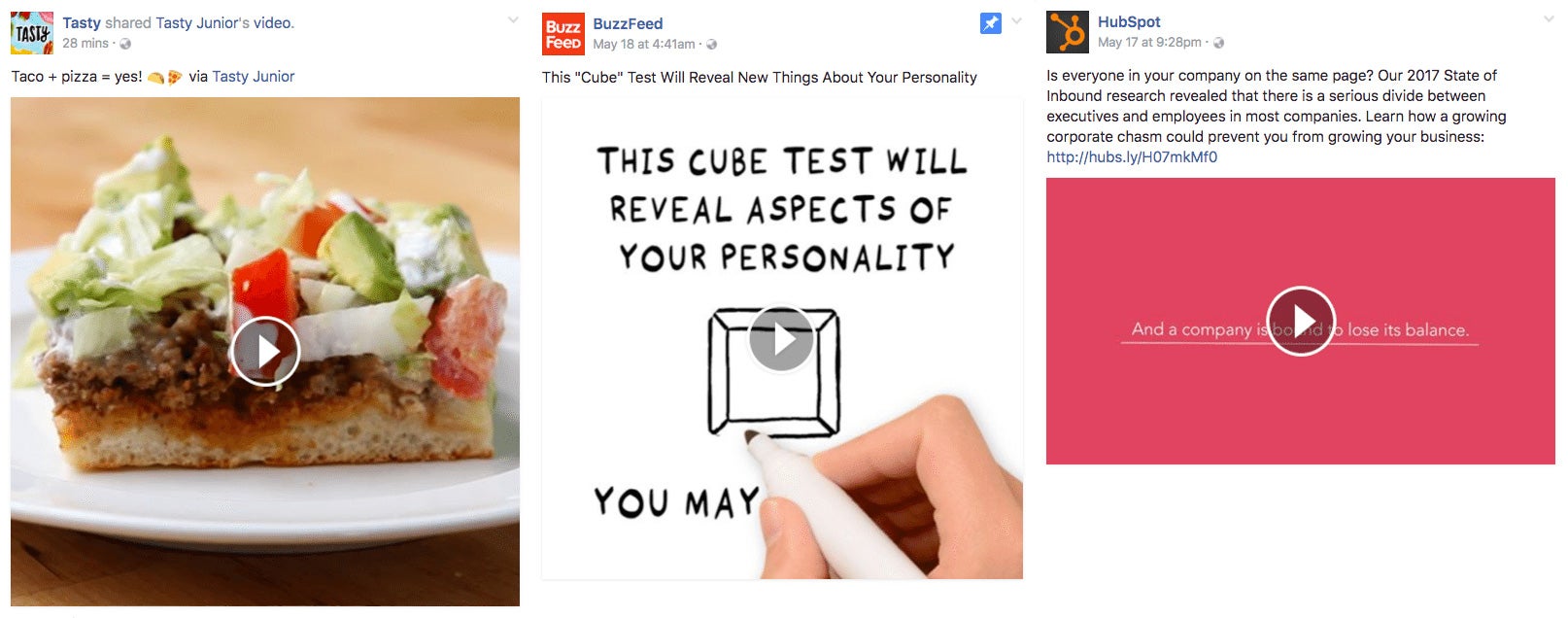
An informative copy about the video, coupled with a relevant thumbnail, can be a great formula for attracting people’s attention as they scroll through their News Feed.
Here’re a couple examples:
10. Add a call-to-action
Having a call-to-action (CTA) on your video is a great way to encourage engagement, drive traffic to your website, and even convert viewers into customers.
It might be common to think of CTAs as buttons to a signup form or website. But CTAs can be as simple as a sentence calling for an action, such as “Read the full blog post here: Link“.
While Facebook has , there are still several free ways to add a CTA to your Facebook video.
- In your post copy, you could include a link to your blog post or website and invite viewers to find out more information by clicking on the link. You could also simply ask your audience to share their thoughts as comments.
- During the video, you could mention a CTA if you are talking in the video or use a text overlay (e.g. Learn more social media tips at blog.buffer.com). Wistia such mid-roll CTAs have the highest conversion rates.
- At the end of the video, you could have a text overlay or a static image with a CTA and let the video play for a few seconds after the actual content ends.
For instance, Gary Vaynerchuk likes to include his share bear in the middle or at the end of .

You could also add a CTA on your Facebook post itself if you boost the video. More on this .
11. Tag other pages
Another feature you can use to try and spread your Facebook video is tagging other Pages that either contributed to the video or that you would like to make aware of the video.
It is important to keep the tagging relevant.
Here’re a few examples of “who to tag”:
- People who contributed to the video directly — “Featuring Taylor Swift”
- People that are mentioned in the video — “We love Harry Potter and here’s why.”
- People who inspired you to make the video — “HT to Leo Widrich for the inspiration.”
- People who are related to the video or that you would like to make aware of the video — “We would like to tag Buffer to take on the challenge next.”
To tag someone on Facebook, simply type the “@” symbol before the title of the Page or person you would like to tag and a few options should appear for you to pick.

12. Choose preferred audience for your videos
who studied the Facebook News Feed, relevance is a key factor that Facebook’s algorithm considers when ranking posts on users’ News Feed.

Here’s the good news: Facebook has a feature to help you share your video to the most relevant audience!
Once you have uploaded your video onto Facebook (before you publish it), there’s an option in the lower-left corner to set your preferred audience for this video.

When you click on it, a pop-up will appear where you can set the following:
- Preferred audience: This allows you to set the people you’d like to reach based on their interests and the Pages they’ve liked.For example, a sports retailer could choose interests such as “running” and “long distance running” for a video on a new long distance running shoes.
- Audience restrictions: This allows you to limit who can see your video. Only people in audience group you’ve chosen can see your video (anywhere on Facebook).For example, a fashion retailer in Singapore could set the restrictions such that only female aged 25-35 in Singapore can see the video.

By setting your preferred audience and restricting who can see your video, your video will be shown to the most relevant audience, who will most likely watch your video and interact with your post (if you have set the right targeting).
13. Use insights to understand video performance
Facebook provides metrics like minutes viewed, video views and average watch time, which can provide great insights into which videos generated the most engagement with your viewers.
You can see these metrics by clicking on any videos in the “Videos” tab of your .
Some of the metrics I like to look at include:
- Video average watch time: The graph will show you the point at which the audience dropped off. Looking at that point to understand what made people stop watching might help you in creating better content.
- 10-second views: This is the number of people who have watched your video for 10 seconds (or to completion if your video is less than 10 seconds).
- Post engagement: This section will tell you the reach of your video and the engagement it has received.

14. Go live
If you want more people to watch your videos and see your Facebook posts, consider going live on Facebook.
When Facebook launched Facebook Live, it to rank live videos more favorably as live videos kept people engaged.

Social Media Examiner also the more they went live on Facebook, the more their non-live content received exposure. Michael Stelzner, CEO and founder of Social Media Examiner, hypothesized that as their brand is in front of their fans more often, the fans would go to their Page to see their content more — even if the fans don’t watch the live video.
Here’s another bonus: Facebook would automatically record your live video and publish it on your Facebook Page or profile after the broadcast ends.
When we previously live-streamed our marketing strategy team meeting, the video generated more than 10,000 views on the first day. (We were surprised by it!)
15. Feature a video on your Page
Facebook allows you to feature a video in the “Videos” tab of your Page, which would auto-play. This can be a great way to showcase your best video to those who are interested in watching your videos.
Here’s how it looks like on our Page:

If you have not selected a featured video, Facebook would prompt you to choose.

If you want to change your featured video, click on the pen icon in the upper-right corner and select “Change Featured Video.”
Related: 13 Proven Tips on Running Successful Social Media Campaigns

16. Boost with Facebook ads
Facebook’s in-depth data on its users makes it a great platform for running ads to reach a larger audience with your video.
You can use to promote your videos to a specified target audience. Let’s say for example that you made a video about tables in Paris, France. Facebook will allow you to target people who have shown an interest in furniture and who live in Paris.
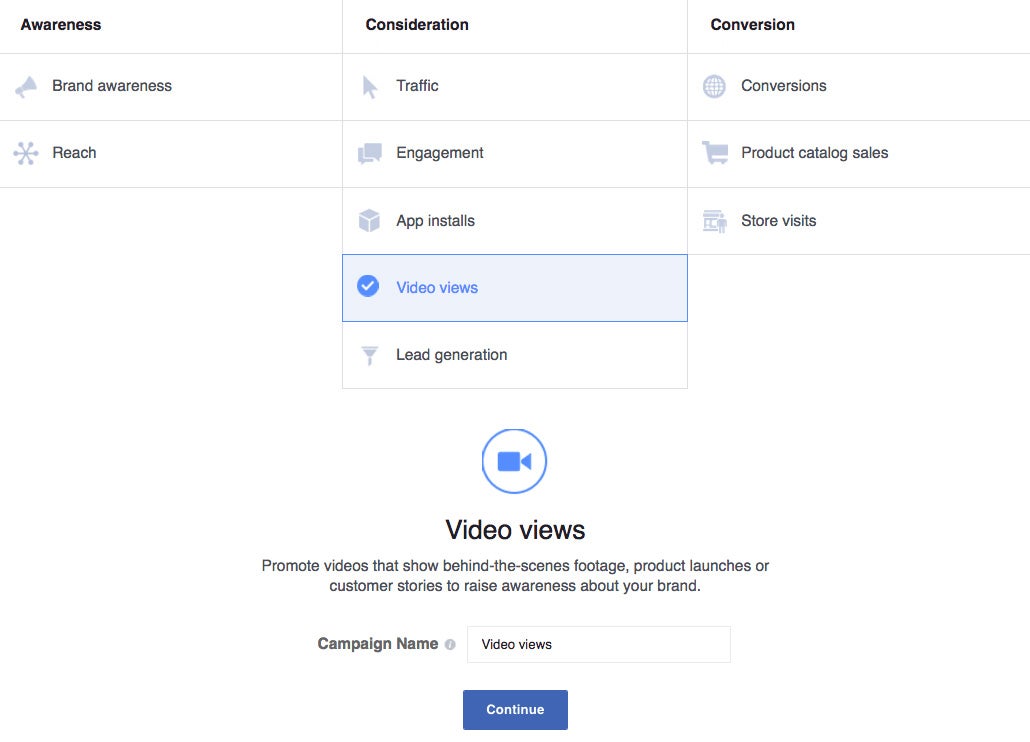
I’d love to show you the highlights of creating a video ad through the :
Step 1: Select “Video views” as your marketing objective.

Step 5: Add a CTA.
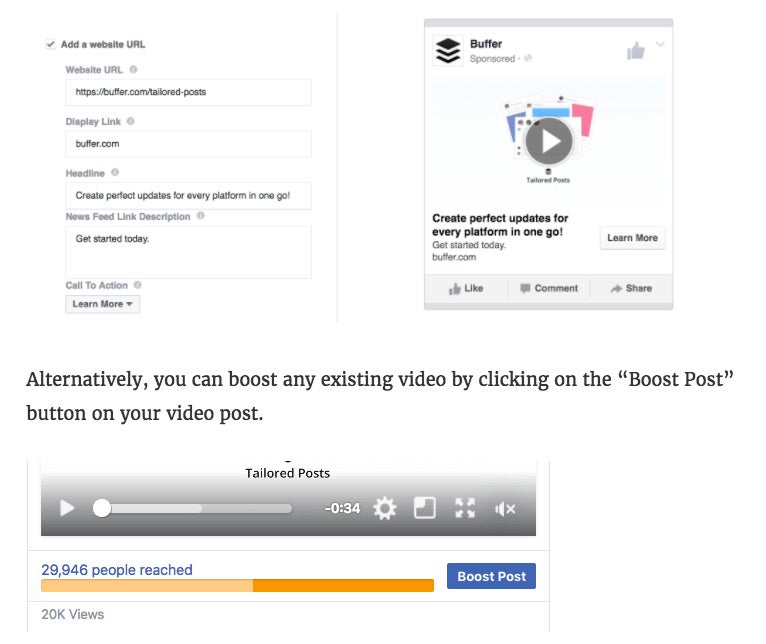
A benefit of using video ads is that you can add a call-to-action (CTA) button on the video post. To do that, you have to tick the “Add a website URL” box and fill up the fields. The preview on the right is how the video ad will look like.
If you prefer step-by-step instructions, you might like .
17. Embed Facebook videos on blog posts
You can also embed your Facebook videos on your blog posts to reach more people.
To get the embed code, go to the video you would like to embed, click on the drop-down menu in the upper-right corner of the post and select “Embed”.

Copy and paste the code where you would like the video to appear on your website. You can select whether you want to include the copy of the post (i.e. Include full post).

Here’s an example:
This post was originally published in 2015 and has been updated with the latest Facebook video tips and information.
Over 8 billion videos or 100 million hours of videos are watched on Facebook every day.
These stats early last year so imagine how much larger the numbers are today as Facebook continued to grow and double down on videos.


